
Bank Statement Import — CSV, OFX, MT940 & Excel
Upload your bank statement in any format. iBill parses transactions, auto-categorizes them with rules, and creates GL entries — ready for reconciliation.
Supported Formats
iBill accepts bank statements in every major format — download from your bank and upload directly
| Format | Extension | Support Level | Canadian Banks |
|---|---|---|---|
| CSV | .csv | Universal | All banks — the most widely available export format |
| OFX / QFX | .ofx,.qfx | Standard | Most online banking platforms — standard financial exchange |
| MT940 | .mt940,.sta | Commercial | SWIFT standard — commercial and business banking |
| Excel | .xlsx,.xls | Manual Export | Any bank — download or copy-paste into a spreadsheet |
How It Works
Four steps from bank statement to reconciled books — no manual data entry required
Download Statement From Bank
Log into your online banking and download your statement in CSV, OFX, QFX, MT940, or Excel format. Most Canadian banks offer at least one of these options under "Download Transactions" or "Export Statement."
Upload to iBill
Go to the Bank Reconciliation page in iBill and upload your file. iBill automatically detects the format, parses every transaction, and maps the date, description, and amount columns for you.
Review & Categorize
iBill applies your saved auto-categorization rules to match transactions to GL accounts. Review the results, adjust any that need manual categorization, and confirm. Rules you create are reused on every future import.
Reconcile & Post to GL
Once categorized, iBill creates double-entry journal entries and posts them to your general ledger. Transactions are marked as reconciled and linked to the correct GL accounts — your books are up to date.
Bank Import Features
Everything you need to go from raw bank data to reconciled general ledger entries
Multi-Format Parser
Upload CSV, OFX, QFX, MT940, or Excel files. iBill automatically detects the format and maps columns — date, description, debit, credit — without manual configuration.
Auto-Categorization Rules
Create rules that match transaction descriptions to GL accounts. Once set, matching transactions are categorized automatically on every future import — saving you hours of manual work.
Transaction Matching
iBill matches imported bank transactions against existing invoices and payments. When a deposit matches an outstanding invoice amount, it suggests the link — speeding up reconciliation.
Bulk Import
Import months of bank statements at once. iBill processes hundreds of transactions in a single upload and lets you review, categorize, and post them all in one session.
Duplicate Detection
iBill checks every imported transaction against your existing records. If a transaction has already been imported — same date, amount, and description — it is flagged so you never double-count.
GL Auto-Posting
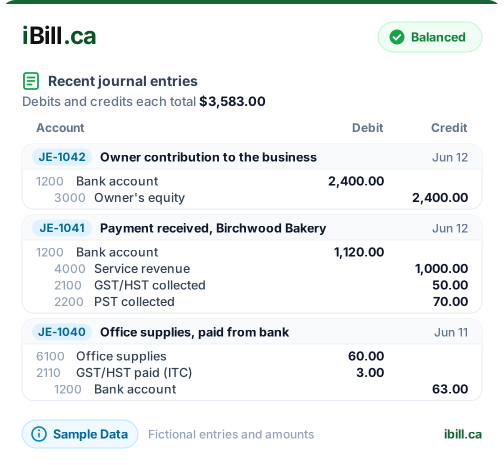
Every categorized transaction becomes a double-entry journal entry posted to your general ledger. Debits and credits are balanced automatically, keeping your books accurate and audit-ready.
Import Your Bank Statement in Minutes
Upload CSV, OFX, or Excel. iBill parses, categorizes, and posts to your GL automatically.
Get Started NowCSV & OFX File Formats by Canadian Bank
Each major Canadian bank exports transaction data differently. Here is what to expect when downloading statements for import.
Canadian banks offer several export formats, but not all formats are available from every bank. The two most common formats are CSV (Comma-Separated Values) and OFX/QFX (Open Financial Exchange). OFX files are structured and include built-in transaction categorization fields, while CSV files are simpler but may require column mapping during import. Here is what each of Canada's Big Five banks typically provides:
TD Canada Trust
TD EasyWeb offers CSV download with columns for date, description, withdrawals, deposits, and balance. OFX/QFX download is available through the "Download Transactions" option. Date format is typically MM/DD/YYYY. Select your account and date range under Activity > Download.
RBC Royal Bank
RBC Online Banking provides CSV, OFX, and QFX exports. Navigate to Account Activity, select your date range, then choose "Download" and pick your format. RBC CSV files use the format: Account Type, Account Number, Transaction Date, Cheque Number, Description, CAD, USD.
BMO Bank of Montreal
BMO online banking exports in CSV and OFX formats. Go to your account, select "Download Transactions," and choose the format and date range. BMO CSV columns include: First Bank Card, Transaction Type, Date Posted, Transaction Amount, Description.
Scotiabank
Scotia OnLine offers CSV download from the Account Details page. Select your account, click "Download Transactions," choose CSV format and dates. Scotiabank CSV format includes: Date, Description, Withdrawal, Deposit, Balance. OFX may require a third-party connection.
CIBC
CIBC Online Banking provides CSV, QFX, and OFX downloads. From Account Activity, select your date range, then click "Export." CIBC CSV columns are: Transaction Date, Description, Withdrawals, Deposits, Balance. Date format is YYYY-MM-DD.
Desjardins
AccesD provides CSV and OFX exports. From your account transactions page, select the export icon and choose your format. Desjardins CSV files are semicolon-delimited and include: Date, Description, Amount, Balance. Amounts use commas as decimal separators.
Bank Reconciliation Workflow: Step by Step
Bank reconciliation is the process of matching your accounting records against your bank statement to catch errors, missing transactions, and unauthorized charges. For CRA compliance, reconciling monthly is considered best practice. Here is the recommended workflow:
- Download your bank statement in CSV or OFX format covering the reconciliation period (typically one calendar month).
- Import the file into your accounting software. iBill automatically parses dates, amounts, and descriptions from all major Canadian bank formats.
- Review auto-categorized transactions. Transactions matching existing categorization rules are automatically assigned to the correct GL accounts. New or unrecognized transactions need manual categorization.
- Match transactions to invoices and expenses. Deposits should correspond to recorded customer payments; withdrawals should match recorded expenses or vendor bill payments.
- Investigate discrepancies. Common issues include: bank fees not yet recorded, interest charges, NSF (non-sufficient funds) returned payments, and timing differences for cheques in transit.
- Post matched transactions to your general ledger. Once reviewed, all categorized transactions create double-entry journal entries automatically.
- Document the reconciliation. Save a reconciliation summary showing the opening balance, all reconciled items, and the closing balance. This is your audit trail for CRA purposes.
How Bank Import Supports CRA Audit Readiness
Under ITA Section 230, the CRA requires businesses to maintain adequate books and records. Regularly importing and reconciling bank statements provides several layers of audit protection:
- Complete transaction history -- Every deposit and withdrawal is captured and categorized, so no income or expense is missed from your records.
- Third-party verification -- Bank records serve as independent confirmation of your accounting entries. If the CRA questions an expense, the bank statement corroborates the payment date and amount.
- Revenue completeness -- By matching all bank deposits to recorded invoices, you can demonstrate to an auditor that all income has been reported. Unexplained deposits are a major red flag in CRA audits.
- GST/HST reconciliation -- Matching bank transactions to invoices ensures that all GST/HST collected on sales is properly reported, and all ITCs claimed are supported by actual payments to suppliers.
- Timely record-keeping -- Monthly reconciliation demonstrates to the CRA that you maintain your books contemporaneously, rather than reconstructing records at year-end.
Matching Bank Transactions to Invoices
The most time-consuming part of reconciliation is matching bank deposits to specific customer invoices. Deposits may not match invoice amounts exactly due to partial payments, combined payments for multiple invoices, or bank processing fees. Here are strategies for efficient matching:
- Exact amount matching -- If a deposit matches an outstanding invoice total exactly, the match is straightforward. iBill highlights potential matches automatically.
- Interac e-Transfer matching -- E-Transfer deposits often include the sender's name in the description field, making it easier to identify which client paid.
- Combined payment matching -- When a client pays multiple invoices in one transfer, split the deposit across the relevant invoices during reconciliation.
- Payment reference numbers -- Including an invoice number in your payment instructions helps match deposits later. For example: "Please include INV-2026-045 in your e-Transfer message."
Handling Multi-Currency Transactions
If you receive payments in USD or other foreign currencies, your bank statement will show the converted CAD amount based on the exchange rate at the time of deposit. For CRA reporting purposes, all amounts must be reported in Canadian dollars. The Bank of Canada daily exchange rate is the standard reference. When importing multi-currency transactions, note that the bank's conversion rate may differ slightly from the Bank of Canada rate. Any exchange gain or loss should be recorded as a separate line item in your general ledger under Foreign Exchange Gain/Loss (typically GL account 7100).
Bank Statement Import FAQs
Ready to import your bank statement and reconcile your books?
Create AccountUpload Your First Bank Statement
Trusted by Canadian businesses using iBill to import, categorize, and reconcile bank transactions.
Create Account• All Formats Supported